

We provide advanced audio-visual technologies to create future-ready corporate, educational, and healthcare environments.
We provide advanced audio-visual technologies to create future-ready corporate, educational, and healthcare environments.

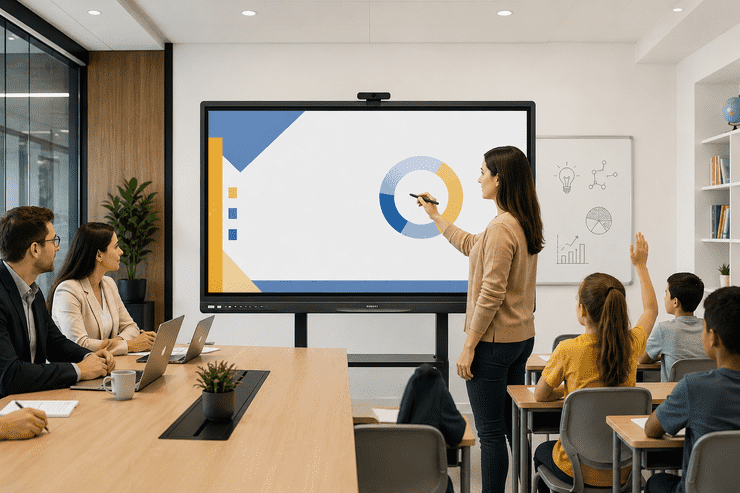
If your school or office is considering an interactive display for the first time, the amount of technical jargon out there can feel overwhelming — touch points, resolution, OPS modules, wireless casting. It's easy to get lost before you've even understood the basics.
This guide strips things back to the essentials. No assumed technical knowledge, no confusing specs — just a simple explanation of what interactive displays are, how they work, and what a first-time buyer actually needs to know before getting started.
At its simplest, an interactive display is a large touchscreen that lets people write, draw, and interact with digital content directly — the same way you'd tap or swipe on a phone or tablet, just much bigger. It replaces the traditional whiteboard, projector screen, or plain TV used in classrooms and meeting rooms.
Instead of just showing content passively, an interactive display lets you:
Think of it as a giant, wall-mounted tablet designed for group use.
You don't need to understand the engineering behind it, but here's the simple version:
That's really it. Everything else — screen size, resolution, brand features — builds on top of this basic process.
| Term | What It Actually Means |
|---|---|
| Touchscreen / Touch Panel | The part of the display that senses your finger or stylus |
| Resolution (e.g., 4K) | How sharp and clear the picture looks — higher is clearer |
| Multi-touch | How many people can touch and interact with the screen at once |
| Wireless Casting | Sharing your laptop/phone screen without plugging in a cable |
| OPS Module | A small built-in computer inside some displays, so you don't need a separate PC |
| Annotation | Writing or drawing on top of shared content, like marking up a document |
| Setting | Common Use | What Beginners Should Prioritize |
|---|---|---|
| Classroom | Teaching lessons, showing videos, student interaction | Ease of use for teachers, durability for daily use |
| Meeting Room | Presentations, video calls, brainstorming | Wireless casting, video conferencing compatibility |
The underlying technology is largely the same — what differs is which features matter most for the room's day-to-day use.
For anyone exploring interactive displays for the first time, Homeify Smart offers a no-pressure starting point for schools and offices across Bangalore:
Q1. Do I need technical knowledge to use an interactive display? No, most interactive displays are designed to be as intuitive as using a smartphone or tablet, with minimal learning curve for everyday use.
Q2. What's the difference between an interactive display and a regular TV screen? A regular TV only shows content, while an interactive display allows touch-based interaction — writing, selecting, and annotating directly on the screen.
Q3. Is a separate computer needed to use an interactive display? Not always — many modern displays have a built-in system that runs apps directly, though some setups still use a connected PC for more advanced software.
Q4. How do I know what size display I need? It depends on your room size — as a general rule, everyone in the room should be able to comfortably read content from their seat without straining.
Q5. Does Homeify Smart help first-time buyers in Bangalore choose the right display? Yes, Homeify Smart offers beginner-friendly consultations to help schools and offices in Bangalore choose and install the right interactive display for their needs.
Interactive displays might come with a lot of technical terminology, but the basics are simple: a touchscreen that makes teaching and collaboration easier, without the clutter of older technology. Understanding these fundamentals is the first step toward choosing a display that actually fits your classroom or meeting room — not just the one with the longest feature list.
New to interactive displays and not sure where to start? Homeify Smart offers beginner-friendly consultation and installation across Bangalore. Reach out today for straightforward guidance.
.

Delivering advanced audio-visual and smart technology solutions to create future-ready environments.
© Homeify Smart 2026 | All Rights Reserved